PC Plus HelpDesk - issue 218
This month, Paul Grosse gives you more insight into
some of the topics dealt with in HelpDesk
|
 |
HelpDesk
Wide Angles with Digital CamerasThis technique applies to all cameras although it has a great deal of relevance here as by using digital media, we are eliminating one of the steps - that of inputting the data using a scanner. If you can get far enough away from an object to be able to fit it all in then fair enough but there are times when you cannot, or if you are taking something that is far too big. This method uses the barrel distortion that wide angle photographs produce to give you a representation in two dimensions of a three dimensional object which itself is a lie.
As it is not possible to get it all in shot, we take a
photograph, aim the camera a little higher and then take
another shot - repeating until we have the whole object
on film (captured digitally here) The final image is made up from quite a few more
images than just those on the right but this illustrates
the point.
You might notice that there is some faint cloud on the
left of the clock tower that appears to be the same as
some near to it. This illustrates one of the problems of
taking multiple images in that if there is movement, it
might show up. At the bottom, this is countered by having
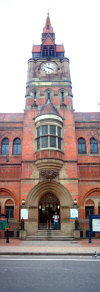
the portion with people in it taken in one go. Note that the luminosity correction is different for each of the images. In the Library picture, the correction process started with the image at the bottom whereas with the Guildhall picture, the correction started with the image of the top of the clock tower. Here is something else to be aware of. A friend of
mine told me that in the days of the school photograph
being taken by one of the proper, rotating cameras, one
trick that some children got up to was to take advantage
of the fact that the image took a few seconds to take.
Once the camera had taken them at the beginning end of
the image capture, they would get off their chair and go
and get onto an empty chair at the other end which was of
course, only a few yards away. This meant that they would
appear twice in the school photograph, once at each end.
Here, the same can happen by accident if you are taking a
panoramic 360 degree shot composite and somebody or
something (it could be a vehicle such as a milk float,
dust cart, rare vehicle such as a traction engine or the
mayor's car and so on) happens to do the same as the
child in the school photograph. |
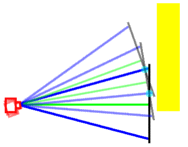 On the right, you can
see a representation of a camera pointing at an arbitrary
plane. You can take it either that you are looking from
the side or from above. In this example, we shall use it
as though we are looking from the side and creating an
image of something that is tall - the yellow tower in the
diagram.
On the right, you can
see a representation of a camera pointing at an arbitrary
plane. You can take it either that you are looking from
the side or from above. In this example, we shall use it
as though we are looking from the side and creating an
image of something that is tall - the yellow tower in the
diagram.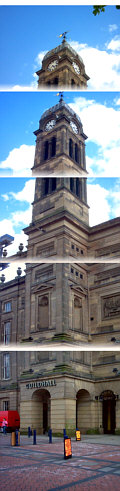 If you look at the
composite on the right, you can see that at the bottom,
we use the whole shot. Above that, we have used the image
from the top, down to a point that corresponds to the
cyan blob in the diagram above - the point in the
imaginary plane (the imaginary object plane in the
image that is, not the imaginary plane that involves
complex numbers and the square roots of negative numbers)
where the upper image intersects with the one below such
that just over half of the upper image is used.
If you look at the
composite on the right, you can see that at the bottom,
we use the whole shot. Above that, we have used the image
from the top, down to a point that corresponds to the
cyan blob in the diagram above - the point in the
imaginary plane (the imaginary object plane in the
image that is, not the imaginary plane that involves
complex numbers and the square roots of negative numbers)
where the upper image intersects with the one below such
that just over half of the upper image is used.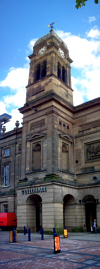
Coloured Fringes on Digital ImagesIf you have a digital camera, you have the freedom to take photographs of everything in full knowledge that you are not wasting any film that will then cost a lot to develop. However, there are some things that will take good photographs and some things that will generate their own problems.
However, one problem that it has regarding taking
digital photographs is the thin horizontal window bars. These effects are partly down to the size of the cells
that capture the light to make up the image and partly
due to the way that the CCD obtains its colour
information. If you take our blue cell, to find the level of red in it, you can take the average of the four surrounding red cells, repeating the process for the green value. However, if you want to find the level of blue or red in a green cell, you only have half of the information to go on. In fact, if you look at it, you will notice that every other row or column has no red cells and the same goes for those in between with regard to blue cells. Another problem is that if you have, say, a horizontal structure that has a sharp contrast (for example the 1930's window bar in the Art Deco building), you can find that you get the colour fringing based upon the arbitrary nature of where the contrast feature happens to fall on the CCD. One attempt to get around this is to use algorithms that look at the horizontal and vertical pairs, looking for the best correlation and using the most appropriate pair to determine the average level for any particular colour but in the end, you cannot get around the fact that two thirds of the information has been thrown away by having primary colour filters over the cells in the CCD. Even the use of secondary colours instead still has the problem of lack of information because instead of presenting the cell with the transmission profile of a primary colour, instead, it is with the absorption profile so there is no more data. However, the use of secondary colours does mean that more light gets through and therefore these have better signal to noise ratios and speeds. In the files section on the SuperDisc, I have included two Bayer patterns - primary and secondary - so that you can experiment for yourselves.
Whilst these might seem nothing more than an
irritation, they can have their uses. If the two patterns
that are interfering are uniform, the pattern will be
uniform - if there are odd angles involved, there might
be curious angles produced but everything will be
uniform. If there is a distortion, you will see irregular
curves formed and as we know that the CCD's contribution
to the pattern is regular, the psychedelic pattern on the
roof must be down to distortions in either/both the way
that the tiles are laid or/and any distortion of the roof
plane from flat. You can see that where the roof is
fairly narrow - in the top halves, the patterns are
fairly straight whereas in the bottom half, it is
distorted presumably due to the weight of the roof as in
the left-facing face or due to structural roof features
as in the right-facing face. If you turn up the colour
saturation in your favourite image editor, you can even
see how even the brickwork is. |
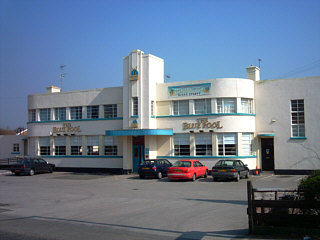 One thing that Derby
is famous for is its 1930's Art Deco buildings. It has
the only art Deco bus station in the country and
throughout the city there are good examples of this
architecture.
One thing that Derby
is famous for is its 1930's Art Deco buildings. It has
the only art Deco bus station in the country and
throughout the city there are good examples of this
architecture.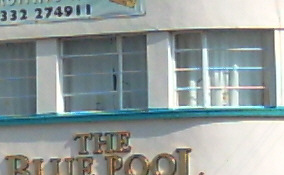 These can be small
enough; and, are certainly of high enough contrast to
cause problems with Moire fringe-type effects and in the
picrure on the right, they are in reality, painted white.
These can be small
enough; and, are certainly of high enough contrast to
cause problems with Moire fringe-type effects and in the
picrure on the right, they are in reality, painted white.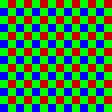 With the exception of
one type of digital image capturing chip where all three
colour values are captured in each cell, they all use
what is known as the Bayer patten, named after its
inventor, a Doctor Bayer who worked for Kodak. As you can
see, the cells are grouped into 2x2 blocks with two
green, one red and one blue cell. This means that if you
are trying to find the level of green in a blue cell, you
cannot do it directly - you have to interpolate the
values of adjacent cells.
With the exception of
one type of digital image capturing chip where all three
colour values are captured in each cell, they all use
what is known as the Bayer patten, named after its
inventor, a Doctor Bayer who worked for Kodak. As you can
see, the cells are grouped into 2x2 blocks with two
green, one red and one blue cell. This means that if you
are trying to find the level of green in a blue cell, you
cannot do it directly - you have to interpolate the
values of adjacent cells.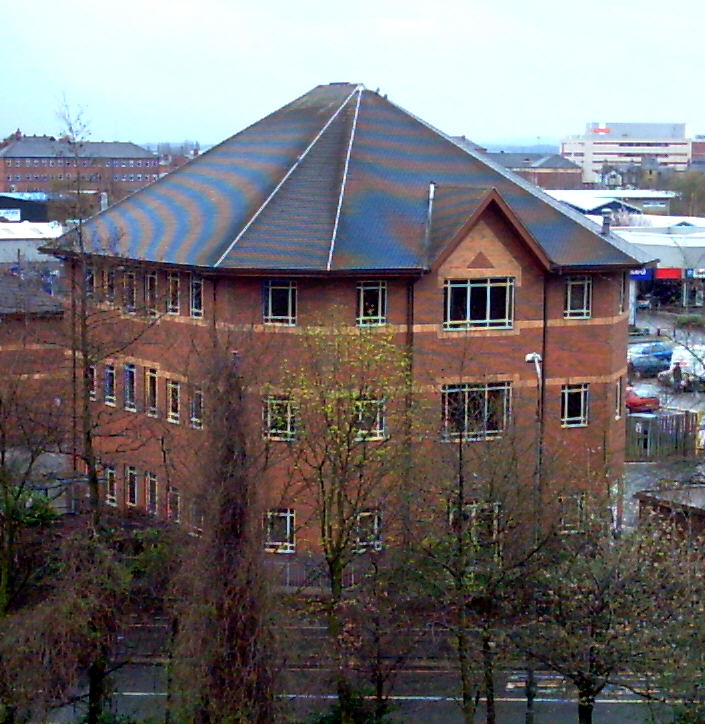
Apache Log Entries - Whois DatabasesIf you don't get any luck getting a friendly domain name from nslookup/ host, try using the following to get the domain name:
|
HelpDesk Extra
Domain NamesIf you have not got your own domain name, there are sites that will let you add your own choice in front of a variety of ther own - working your way down the DNS tree.
DynDNS offeres a dynamic and static service. The static service offers the same as the dynamic one except that it is for people whose IP address stays the same. If your IP does change with the static service, you can change it to the new IP address although this can take a few days to filter through the system. For the purposes of this HelpDesk Extra, I have created a number of URLs from info2.mine.nu using the wildcard attribute at DynDNS. So, as *.info2.mine.nu is being directed at my IP address, I can (and have) set up virtual hosts for: http://www.info2.mine.nu/ , http://www.pauls.info2.mine.nu/ and http://clear-the-drains.info2.mine.nu/ which all run off one server. below gives you some extra information on how to create and check this over what is in the magazine. |
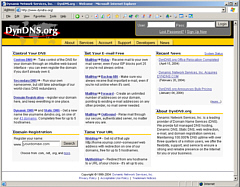 One such site is DynDNS.org
 Name-based Virtual HostsIn section 2, you defined the default server configuration. Here... ### Section 3: Virtual Hosts ...you let the server know about other websites you want to run of the server. Virtually any directive that can be found in section 2 can be put in here and if you want to play safe, you can add a few that are already there such as denying WebDAV and so on This is the section in full (with just three additional vhosts) NameVirtualHost * <VirtualHost *> ServerAdmin me@myisp.co.uk DocumentRoot "/srv/www/htdocs" ServerPath "/srv/www/htdocs" ServerName server1.workgroup ServerAlias server1 Server1 Server1.workgroup ErrorLog /var/log/httpd/s1error_log CustomLog /var/log/httpd/s1access_log combined </VirtualHost> <VirtualHost *> ServerAdmin me@myisp.co.uk DocumentRoot "/srv/www/mydomain" ServerPath "/srv/www/mydomain" ServerName www.mydomain.co.uk ServerAlias mydomain.co.uk *.mydomain.co.uk ErrorLog /var/log/httpd/mderror_log CustomLog /var/log/httpd/mdaccess_log combined </VirtualHost> <VirtualHost *> ServerAdmin meagain@myisp.co.uk DocumentRoot "/srv/www/myotherdomain" ServerPath "/srv/www/myotherdomain" ServerName www.myotherdomain.co.uk ServerAlias myotherdomain.co.uk *.myotherdomain.co.uk ErrorLog /var/log/httpd/moderror_log CustomLog /var/log/httpd/modaccess_log combined </VirtualHost> This breaks down as follows:
|
Mounting Drives in Linux Directory Stuctures
In the tree on the right, you can see that the /srv directory is one partition but mounted within that is another partition called hcam. This is configured in the fstab file in /etc. In this case, it is an smb mount from another machine but there is no reason why you cannot use it to mount another drive (just imagine what you could to with 250GB of web space) that is physically in the same machine. Being able to do this has the effect of not necessarily requiring you to change your httpd.conf file in order to accommodate this (if, for example it was part of an existing website). |
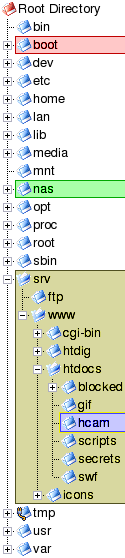 One advantage that Linux has over Windows is
that if you decide to increase the amount of disk space
that is available in a certain area, you can do it just
by mounting it there.
One advantage that Linux has over Windows is
that if you decide to increase the amount of disk space
that is available in a certain area, you can do it just
by mounting it there.SecurityYou must remember that you should protect your servers with at least a firewall and preferably, it should run on a machine on its own. Configure your firewall so that it allows port 80 through and directs it all at your web server - something like the following:
so in this example, all inbound port 80 traffic is directed at host 10.23.16.9 |
External access
One solution to his is to use a proxy so that your browser connects to the proxy and the proxy connects back to your site. Whilst this can be achieved without graphics by asking Google to translate a site for you, there are some sites that are set up to allow anonymous browsing but can be used to check your site's virtual websites. One of these is Proxify ( http://proxify.com/ ) and it will let you see your images so, if you have forgotten to make them readable to others, their failure to appear will be seen by doing this. Remember though that if you want to test out password access, you should set up a temporary password for the purpose and delete it (or configure it out) afterwards. |
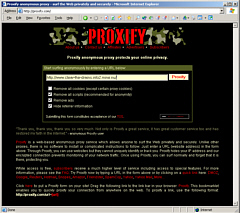 One little problem you will have is that
unless you start messing around with your DNS on your
LAN, you will probably not be able to see your virtual
sites from the Internet.
One little problem you will have is that
unless you start messing around with your DNS on your
LAN, you will probably not be able to see your virtual
sites from the Internet.