PC Plus HelpDesk - issue 205
| This month, Paul Grosse gives you more
insight into some of the topics dealt with in HelpDesk
and HelpDesk Extra We look at: Deleting Data; Virus
Hoaxes; Stretching the processing boundaries with Windows
xp |
 |
HelpDesk
DELETING DATADeleting data on a disk is a little more involved than simply pressing [Del]. It really just doesn't want to go away and the Windows operating system and a number of program vendors have made sure that there are a number of lines of defence before even the relatively unequipped user can't get it back. In Windows Explorer or on the desktop or numerous other places, you can get rid of a file by highlighting it and pressing [Del]. This, as everybody (I hope) knows, will transfer it to the recycle bin. If you then go to the recycle bin and delete it from there, the disk space it occupies ("still" occupies as opposed to "used to" occupy) is marked ready to be written over by the next file that needs it. If the file was originally written when the disk was
fairly full and the disk has had a lot of data removed
since, for instance, if you burn a lot of CDs, it may
well be a long time before that area is overwritten. With
this in mind, there are a number of programs available
that will look at the data on the disk that is
recoverable. Some "deleted" files can still be
found entirely intact and whilst any word processor will
reject any partially recovered file with the possible
exception of text files, these are still of some use to
forensic analysis or to competitors where the time and
cost to analyse the data is budgeted for. However even
forensic imaging of the whole disk still only looks at
part of the information on the disk -- only really
looking at as little as only 15% of it because this is
what has been digitised. The analogue information is
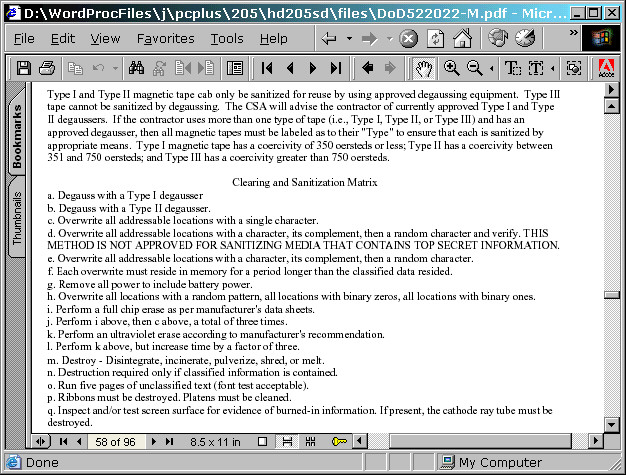
simply ignored by the imaging process. The analogue information is what people like to think of as digital information on the disk but in reality, there are no completely magnetically polarised bits of data. A clever piece of hardware decides whether or not any particular bit is a 1 or a 0 based on whether it is more like a 1 or more like a 0 and that result is what the computer sees. If the disk drive is taken apart and the analogue data recovered directly from the disk, several generations of data writes can be recovered -- claims of up to 7 generations have been made and if your information is valuable enough to warrant that type of analysis, all of the disk needs to have undergone a pretty rigorous overwriting process in order to obliterate any potentially useful residual data. Just how much and of what type of overwriting of data is required depends upon the media type and the importance of the data. This is laid down in the US Department of Defense file DoD 5220.22-M National Industrial Security Program Operating Manual (NISPOM) at the end of section 8-307 which states that simply overwriting the data seven or so times is not good enough for a 3.5" floppy which has to destroyed. Click here to open the DoD 5520.22-M.PDF file |
HelpDesk
VIRUS HOAXESThere are in the order of 500 new viruses added each month to the lists of viruses that antivirus product vendors use to keep their AV products up to date. Many AV vendors issue bulletins when particularly dangerous viruses get into the wild and it is on the back of these that the virus hoax writers have their "fun". A typical hoax associates itself with some sort of recognised authority, a big name that everybody is likely to have heard of or sounds to the novice as though they should have heard of it. Then, it sets out the plausible details of the hoax and how the victim should avoid any damage to their equipment by following a few easy procedures and finally (almost as though the virus hoax was itself a virus, but instead of utilising a computer's operating system to spread itself, it has taken over the mind of the user) it suggests that the message should be passed to everybody the user knows. An early virus hoax was the Good Times hoax which wasted a lot of man-hours. Some people got very fed-up with receiving warnings about it and somebody wrote the Good Times Spoof which is well worth the read. Reports of the computer vulnerabilities and hoaxes can be seen at the CIAC site http://www.ciac.org/ciac/ |
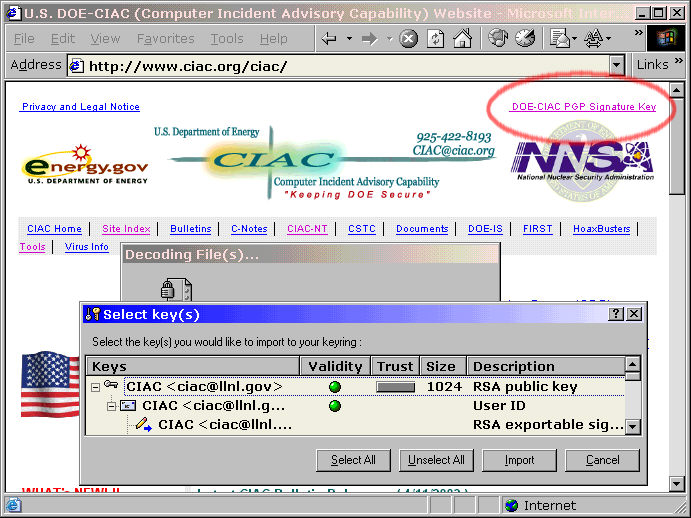 |
Click on the link in the top right of the CIAC page to download CIAC's PGP public key so that you can check any CIAC vulnerability reports. |
HelpDesk
Stretching the processing boundaries with Windows xp |
|
 |
If you have a resource-hungry
application that runs under DOS such as this rocket
computer model, you might get a screen similar to this
one when it decides to over-stretch the Windows xp
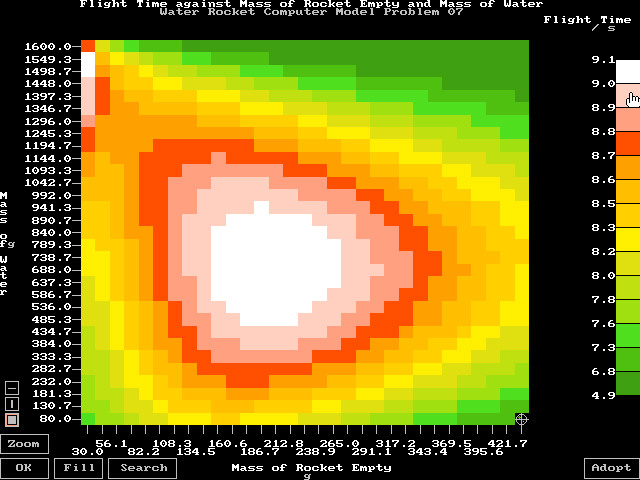
resources that are available to it In this case, the program in question has gone from normal operating mode into one where it needs to optimise two input variables against each other giving a graph of one of six output variables. The graph has up to 31 x 31 points so there is quite a large array to be produced - 5766 figures plus the processing overhead with its arrays and so on. The program simply runs out of space when it dimensions these arrays and stops itself, offering the usual cryptic error message that could only ever mean anything to one person (not necessarily the programmer). One thing to bear in mind is that this particular program runs well on all computers from DOS on a 486 through to Windows 98 on various Pentiums so clearly, it should run on an operating system that is "better" such as xp. Shouldn't it? So, why doesn't it? |
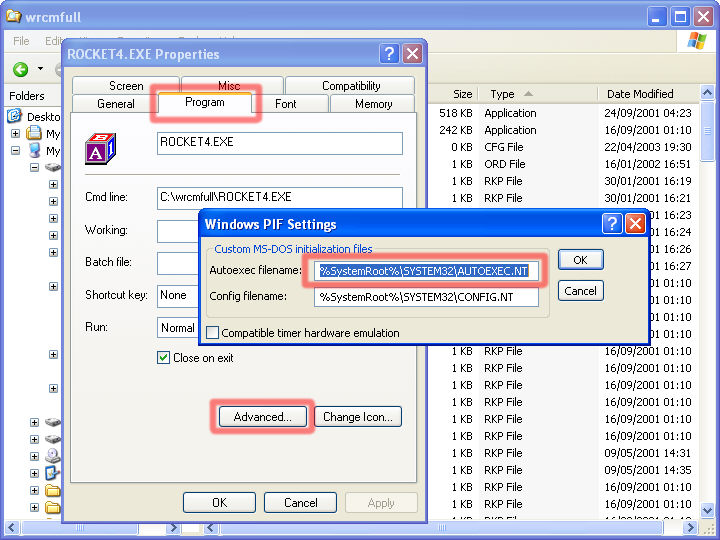 |
In Windows Explorer, locate the exe
program and right-click on it. Select that enormously
useful "properties" menu option (where would
we, or Windows be without the properties tag?) Click on the "Program" tab in the properties box and then click on "Advanced..." You can now see where the AUTOEXEC.NT file is stored. Go back to Windows Explorer and find the file and open it in Notepad (you should find this in the Start/ Programs/ Accessories menu unless you have already copied the shortcut to half a dozen more useful places). |
The suspect lines:REM Install CD ROM extensions lh %SystemRoot%\system32\mscdexnt.exe REM Install network redirector lh %SystemRoot%\system32\redir REM Install DPMI support lh %SystemRoot%\system32\dosx SET BLASTER=A0 |
There is a lot of hepful explanatory
text in the AUTOEXEC.NT file and it is worth reading
through it but here are the main points:
I suggest that you should follow this procedure:
|
 |
At last, it is running perfectly. If you really want, you can now go back to the AUTOEXEC.NT file and see what you can turn on again without it messing up the way that the program works. |
HelpDesk Extra
| If you have your network hardware installed and have followed the instructions with your LAN card, you should be able to do the following. | |
IDENTIFYING YOUR MACHINE - Win98 |
|
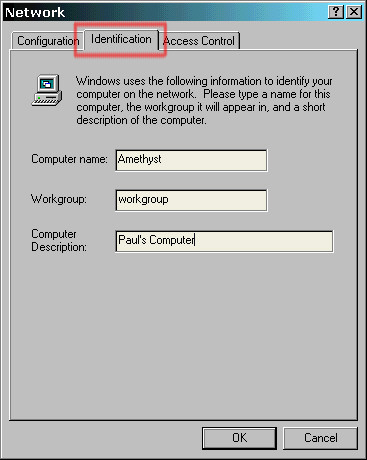 |
Right-click on the network neighbourhood
icon and then select Properties. Click on the Identification tab and then you can input the name of your computer -- Here, I have chosen semiprecious stones for the names of the computers but there is nothing to stop you from choosing: elements from the periodic table; big cats; mountains; asteroids; or even, amino acids (if you don't want a network bigger than about twenty). The workgroup should be the same for each computer that needs to communicate on any network and here, where there is only one network, "workgroup" is fine although if you have a bigger site, "personnel", "canteens", "sales", and so on would be a good start. |
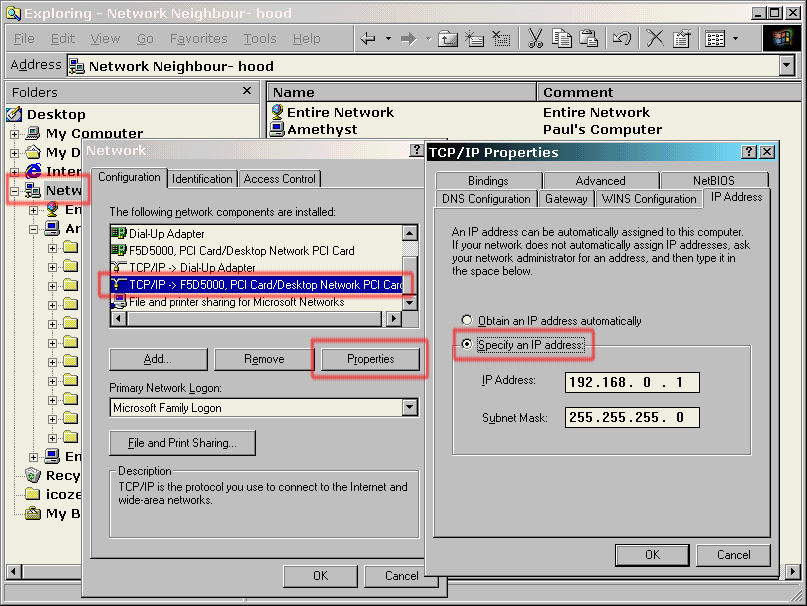 |
Clicking on the configuration tab, then
on the network interface card's protocol entry (TCP/IP)
and then on properties brings up the TCP/IP properties
box. On the IP Address tab, you can specify the computer's IP address and subnet mask. You will notice that where the subnet mask is 255, the
IP address has to remain the same. It is also advisable
for each machine to use the same subnet mask so, you may
have a number of machines with a subnet mask of |
AND xp |
|
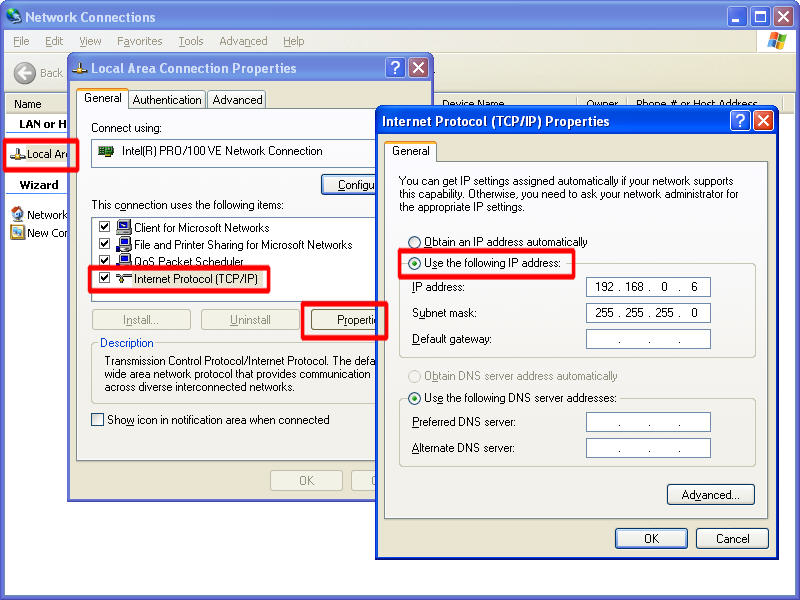 |
Here, you can see that the situation is fairly similar with Windows xp although there are less lines in the connection items under the "General" tab (which was "Configuration" in Windows 98) |
THE PROXY SERVER |
|
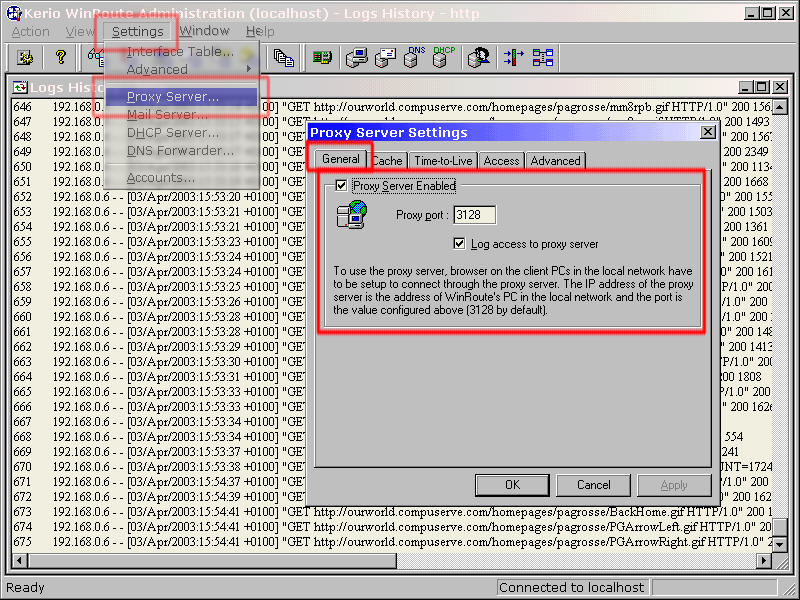 |
Here, on WinRoute, selecting
"Settings" and then "Proxy Server"
brings up the "Proxy Server Settings" dialogue
box. If you activate the Proxy Server and set the port to 3128 (which is what is normally is), much of the Internet traffic that goes through that machine will be stored locally. Any browser on another machine that is configured to use port 3128 on this machine (as a proxy), will be able to access files without the proxy needing to go online. This will speed up access to commonly browsed pages if there is only one or two other machines on the network but if there are many machines, and the users tend to visit the same pages, access will be much faster as being stored locally, the slowest network they will travel across will be the LAN instead of through the continental shift paced Broadband connection. |
THE BROWSERS |
|
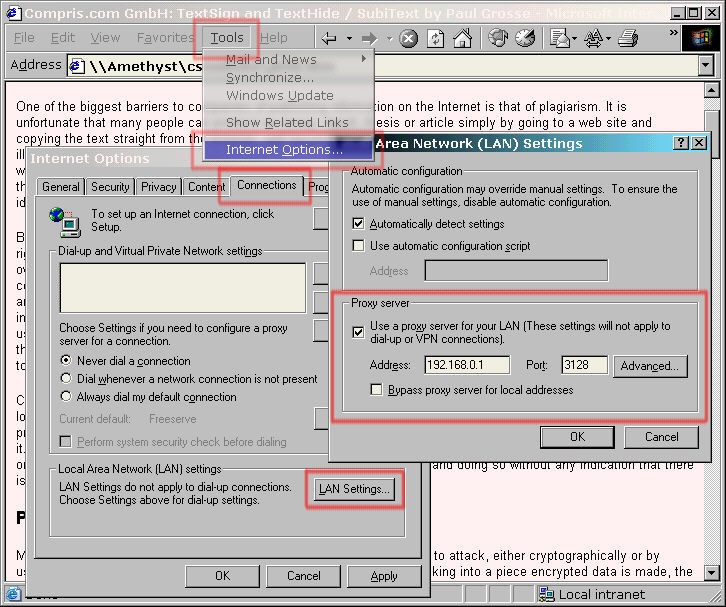 |
Internet Explorer 6, here on Windows
98SE can be configured so that it browses only through
the LAN. Click on "Tools", "Internet Options" and then, on the "Connections" tab, click on "LAN Settings..." and then check the "Use a proxy server for your LAN ..." box. For the Address, type in the LAN IP address of the Network Interface Card (NIC) that the LAN is connected to. In the Port box, type the same port number that you had on your Proxy server. With these details, the browser will quite happily connect to the Proxy over the LAN and if it can't find the pages it wants on the Proxy, the proxy will connect to the Internet to retrieve them for you. |
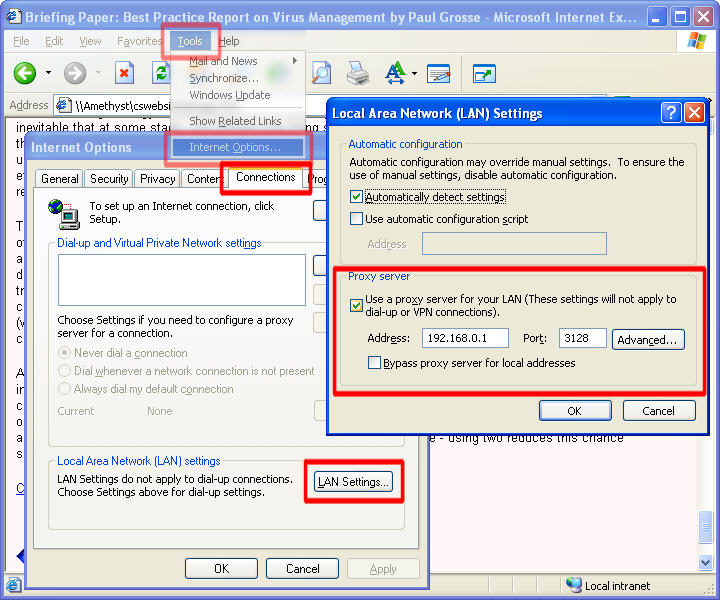 |
Again, Internet Explorer 6, this time
running on Windows xp. Note that all of the machines that you want to connect to the proxy must use the network IP address of the proxy server.
If you have a machine with two NICs, they will be on different networks with the PC acting as a bridge between them. In this case, you can use the proxy server software (certainly in the case of WinRoute) as a basic firewall, scrutinising traffic as it flows between the two networks. With a true firewall, on such a machine, it is possible to prevent somebody on the "accounts" network from accessing certain information on the "personnel" network and so on as this can be filtered out as a content rule. |
OTHER OPERATING SYSTEMS |
|
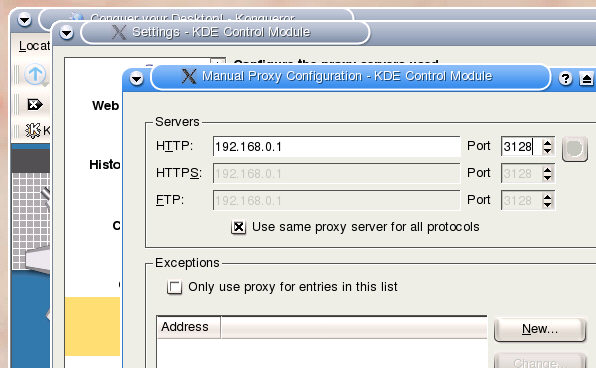 |
Running a proxy for browsing using the
LAN is not limited to Windows machines. Here we see the proxy configuration for a browser running under LINUX. |
TURNING OFF THE TAP |
|
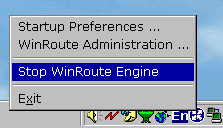 |
With all of the traffic going through
the proxy on the LAN, the administrator of the proxy is
put in a position whereby (s)he can select which machines
have access to Internet resources at what times of the
day or week. Alternatively, all browsing through the proxy can be halted simply by switching it off. |